Your account and the app
How to turn on two-step sign-in
On the NEMZION website, open Account & plan, find Two-step sign-in and click Set up. Scan the code with an authenticator app, type your password and the 6-digit code, and click Turn on. Then make recovery codes.
With two-step sign-in, signing in needs your password and a 6-digit code from an app on your phone. It is turned on from the website, and then works on the website and in the app. You can see whether it is on under Account, Security.

Turn it on
- 01Install an authenticator app on your phone, if you don't have one.
- 02Sign in on the NEMZION website and open Account & plan.
- 03Scroll down to Two-step sign-in and click Set up.
- 04In your authenticator app, scan the code on the screen. Or type the key shown under it.
- 05Type your Password and the 6-digit code from the app, then click Turn on.
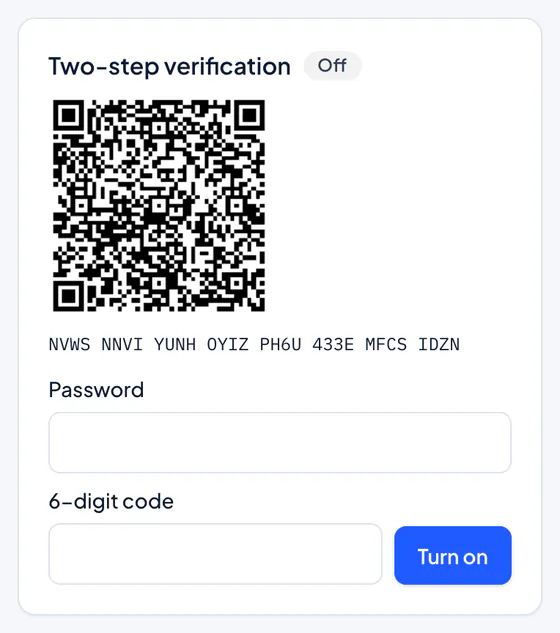
On the website

Make your recovery codes
- 01On Security, the card now says On.
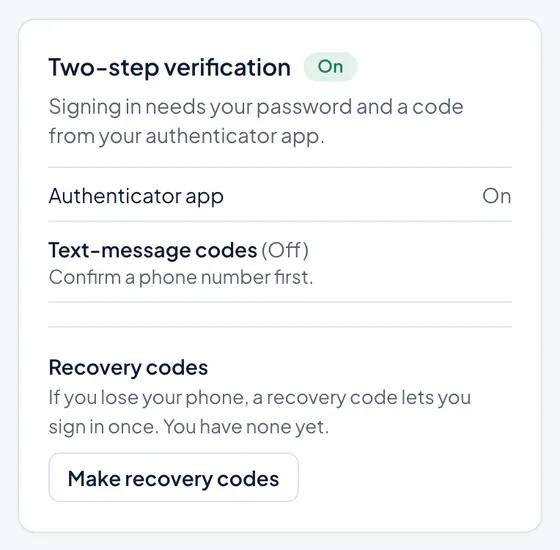
On the website - 02Click Make recovery codes. If it asks, type your password and click Confirm first.
- 03Save the codes somewhere safe, such as a note on paper. Each one works once.
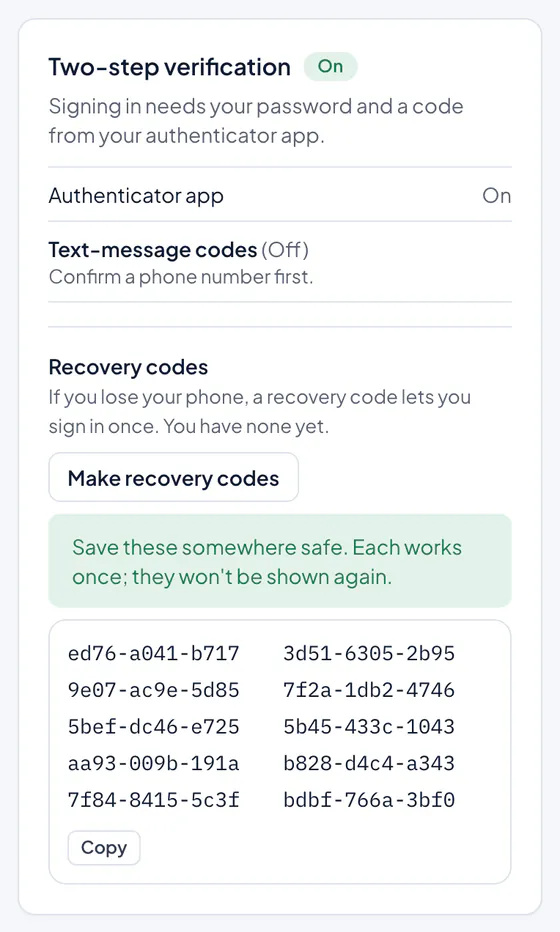
On the website


Signing in later
After your password, type the 6-digit code from your authenticator app. If you lose your phone, use a recovery code. See I lost my phone and my recovery codes.
Never share your codes with anyone, including someone who says they are from NEMZION.
Updated 14 October 2026
Related questions
Still need help?
Ask NEMZION a follow-up question, or write to us. For your own account or property, sign in first.